
Overall versioning systems, I have felt most comfortable is GitHub since it is making the user to feel free to commit the code and make branch etc.
Lets see what is the unique feature available in GitHub.
GitHub a GIT repository hosting service and provides many features. While GIT is a command line tool. GitHub provides web-based graphical user interface.
I hope now you will think what is difference between Git and GitHub.
Git is a revision control system, a tool to manage your source code history. GitHub is a hosting service for Git repositories. So they are not the same thing: Git the tool,GitHub the service for projects that use Git.
GitHub is free to use for public and open source projects. Work together across unlimited private repositories with a paid plan.
Sign Up for GitHub:
- Go to the link: https://github.com/ . Fill the sign up form and click on “Sign up for Github”.
GitHub Work Overflow:
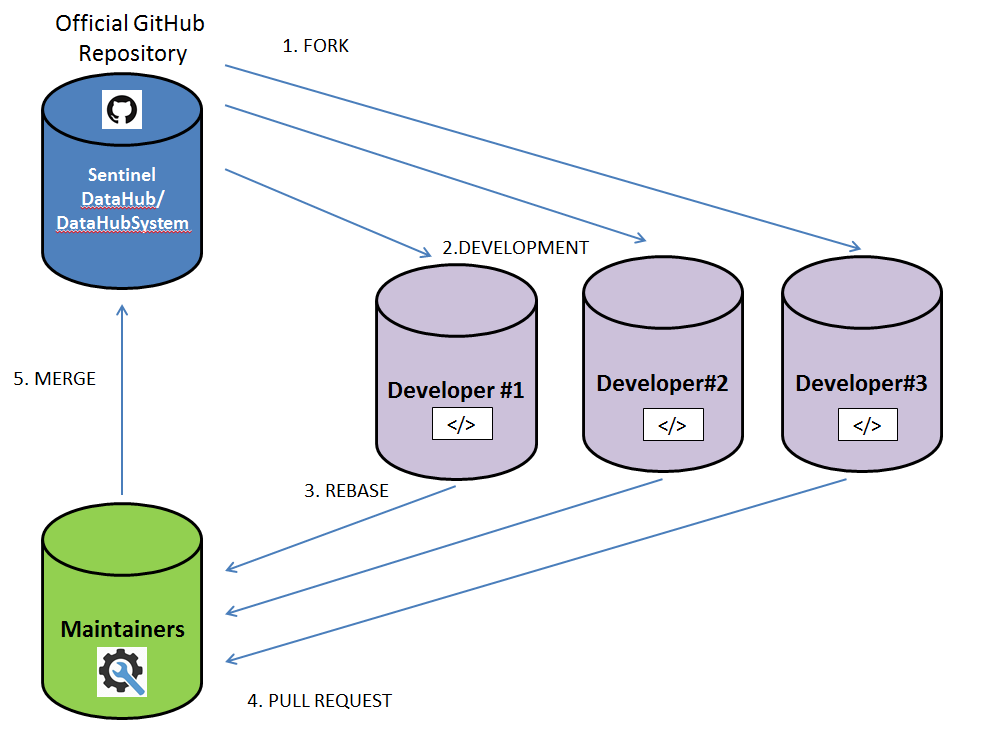
How to Use GitHub from Command Line ?
10 most important GitHub commands and uses:
| Sl.NO | Command | Usage | Benefits |
| 1 | git config | 1. git config –global user.name “[name]” 2. git config –global user.email “[email address]” | This command sets the author name and email address respectively to be used with your commits. |
| 2 | git init | git init [repository name] | This command is used to obtain a repository from an existing URL. |
| 3 | git clone | git clone [url] | This command is used to obtain a repository from an existing URL. |
| 4 | git add | git add [file] | This command adds a file to the staging area. |
| 5 | git commit | git commit -m “[ Type in the commit message]” | This command records or snapshots the file permanently in the version history. |
| 6 | git diff | git diff | This command shows the file differences which are not yet staged. |
| git diff [first branch] [second branch] | This command shows the differences between the two branches mentioned. | ||
| 7 | git pull | git pull [Repository Link] | This command fetches and merges changes on the remote server to your working directory. |
| 8 | git push | git push [variable name] master | This command sends the committed changes of master branch to your remote repository. |
| git push [variable name] [branch] | This command sends the branch commits to your remote repository. | ||
| git push –all [variable name] | This command pushes all branches to your remote repository. | ||
| 9 | git merge | git merge [branch name] | This command merges the specified branch’s history into the current branch. |
| 10 | git branch | git branch | This command creates a new branch. |
Difference between Fork and Clone:
When you say you are Forking a repository you are basically creating a copy of the repository under your GitHub ID. The main point to note here is that any changes made to the original repository will be reflected back to your forked repositories(you need to fetch and rebase). However, if you make any changes to your forked repository you will have to explicitly create a pull request to the original repository. If your pull request is approved by the administrator of the original repository, then your changes will be committed/merged with the existing original code-base. Until then, your changes will be reflected only in the copy you forked.
In short:
The Fork & Pull Model lets anyone fork an existing repository and push changes to their personal fork without requiring access be granted to the source repository. The changes must then be pulled into the source repository by the project maintainer.
Note that after forking you can clone your repository (the one under your name) locally on your machine. Make changes in it and push it to your forked repository. However, to reflect your changes in the original repository your pull request must be approved.

 Technology Help